The latest edition of Theme Manager 3 was released a few months ago, and it received quite an overhaul in many areas. The most obvious change was the UI which is more uniform and familiar with other Stardock applications.
So what exactly is Theme Manager?
The best way to describe it is it’s an application that works as a hub between other desktop enhancement applications (such as WindowBlinds, IconPackager, etc.) to apply different desktop environments at once with a single interface, without the need to open each individual program and chance the theme.
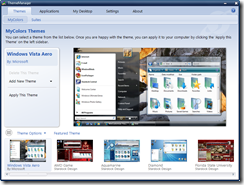
Theme Manager 3 supports various desktop elements:
- Wallpapers
- WindowBlinds skins
- DeskScapes (animated wallpapers)
- Bootskins
- Logons
- Cursors
- Icons
- and much more
With Theme Manager 3, you are also able to manage MyColors themes and .suite files, and even lets you easily create your own .suite files for your own use, or to share with the skinning community.

In the ‘Applications’ tab you can click through the various categories which will display the current skins you have installed, and you can even apply the skins individually from here also.

Moving over to the ‘Desktop’ tab, one of the sub-options is ‘My Current Desktop’ which shows the current skins you have on your desktop. You can save your current figuration to a .suite file by clicking the save button.

Click the ‘Create New Theme’ tab to create a new .suite file from scratch. This is one of the coolest features of Theme Manager 3 as you can create a .suite from just skin links from WinCustomize.com. You can also create the theme from local files, but creating from links makes it much more easier. It also allows you to search WinCustomize right from Theme Manager 3, and select the skins to be included.

This is a great overview of some of the things you can do with Theme Manager 3. Theme Manager 3 is included with an Object Desktop subscription, and can be downloaded here.
