
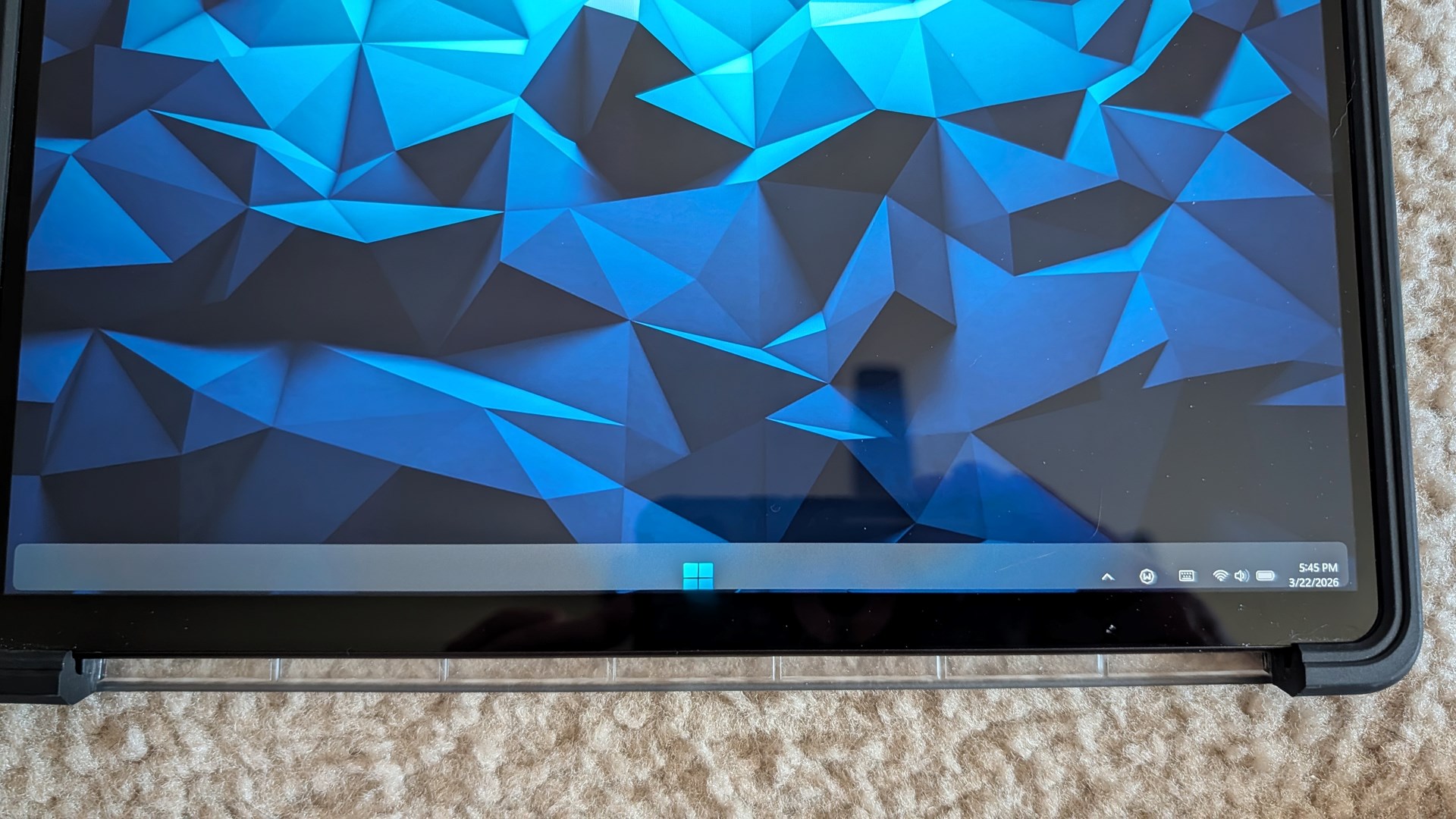
Taskbar misalignment in touch mode.

I use Start11 on my Surface Pro 9 and for the most part its excellent. However I have noticed that when I remove the keyboard and it switches to tablet mode. If there are no applications open the taskbar contents and start button shift down partially off screen. Tapping the start button with my finger also seems to occasionally bring up the stock start menu instead. If I open any other apps then it shifts to that autohidden taskbar where you swipe up to show it, and the alignment is fine. Its hard to describe. I have attached both a photo (i couldn't even screenshot it in device bc as soon as i open snipping tool it corrects itself) and this is a link to a copy of my config backup in case that helps: https://drive.google.com/file/d/1uH_zOug47LmE1C5XigEkmBz9SwY59GTt/view?usp=sharing 
1,299 views 16 replies
Reply #1 Top

Hello,
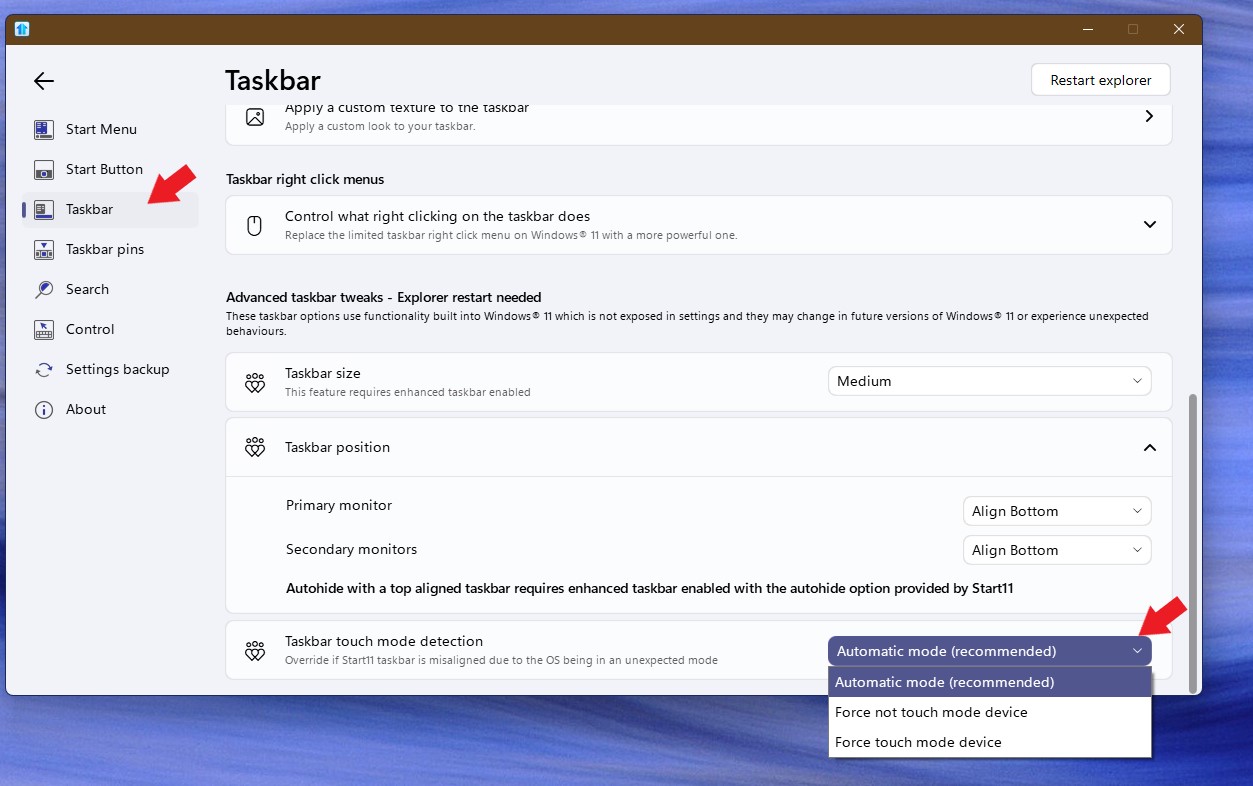
Sorry to hear you are having issues. Please try change the "Taskbar touch mode detection" setting. Try change to any other 2 available option and see if any of it help.

Thank you,
Basj,
Stardock Community Assistant.

Reply #2 Top

Both force options either do nothing or actually make it worse. 

Force not-touch mode: https://youtu.be/5Wo409O6iwE

Force touch mode: https://youtu.be/4lYXjNtr4Ts

So all 3 options result in total misalignment except for automatic+keyboard attached. I hope this can be fixed and I offer to help in any way I can. I'd prefer automatic to work. If those options did end up working having to go in and manually select anytime I remove the keyboard for tablet mode is far from ideal.

Reply #3 Top

The issue appear with Start11 Enhance taskbar turn on or off?

As a test set it back to automatic mode and while the issue still there, do the restart explorer.exe. Does that resolve the issue?

How to restart explorer: https://www.ninjaone.com/blog/restart-the-explorer-exe-process-in-windows/ 

Thank you,

Basj,
Stardock Community Assistant

Reply #4 Top

The issue does indeed go away when enhance taskbar is disabled. So perhaps the issue is isolated to that setting somehow.

Reply #5 Top

With the enhance taskbar enable, does the issue disappear if you restart explorer.exe after you switch to table mode?

Thank you,

Basj,
Stardock Community Assistant

Reply #6 Top

Quoting basj, reply 5

With the enhance taskbar enable, does the issue disappear if you restart explorer.exe after you switch to table mode?

Thank you,

Basj,
Stardock Community Assistant
End of basj's quote

With enhance taskbar enabled, issue returns and is NOT solved by restarting explorer after switching to tablet mode.

Reply #7 Top

There is a newer Start11 v2.71 beta released just moments ago. Please try, uninstall Start11, reboot immediately (important), download latest version available in your account product download page: https://store.stardock.com/myaccount/products. Install it, reboot immediately again. Retest it and report back.

Thank you,

Basj,
Stardock Community Assistant

Reply #8 Top

Issue persists in beta. Installer downloaded was Start11_2.7.0.1-j285-Setup.exe

Reply #10 Top

Quoting basj, reply 9

Would like to suggest trying Clean boot: https://support.stardock.com/space/SHC/1334935592/Start11+Clean+Boot. Do note that Clean boot need to be done with care. Try it and report back.

Thank you,

Basj,
Stardock Community Assistant

 
End of basj's quote


The issue was resolved briefly. I made a new admin local account, signed i to it and on first boot of that account the resizing and position was correct when remiving and reattaching the keyboard. However after a restart to that account the misalignments began again identical to what has been happening already. Also seemingly tied to that "enhance task bar" option.

Reply #11 Top

Have you had a chance to try the Clean Boot steps yet? Sometimes another program or service can conflict with Start11, and this helps narrow things down. Many Surface Pro owners also use Start11 without issues, so if it were a broader problem with the Enhanced Taskbar, we’d likely see more reports from others with similar setups. That’s why I suspect something unique in your system may be causing the behavior. Please do go through the Clean Boot process fully—it’s an important step in ruling things out.

Thank you for your patience and cooperation!

Basj,
Stardock Community Assistant

Reply #12 Top

I'm getting this on my new Thinkpad X12. Extremely obnoxious!!!!!!!!!!!!!! It's completely unusable in touch mode. The touch mode detection makes absolutely no difference, the taskbar buttons are rendered out of frame and randomly reappear. Latest version.

Reply #13 Top

Quoting basj, reply 11

Have you had a chance to try the Clean Boot steps yet? Sometimes another program or service can conflict with Start11, and this helps narrow things down. Many Surface Pro owners also use Start11 without issues, so if it were a broader problem with the Enhanced Taskbar, we’d likely see more reports from others with similar setups. That’s why I suspect something unique in your system may be causing the behavior. Please do go through the Clean Boot process fully—it’s an important step in ruling things out.

Thank you for your patience and cooperation!

Basj,
Stardock Community Assistant
End of basj's quote


Got super sidetracked. I just tried it now. New admin account, ran the zipped script. It closed and restarted both (I assume) explorer and start 11. The issue does persist and now the comment before me has confirmed it on a 2nd, different machine.

Reply #14 Top

Quoting asdfgq111, reply 12

I'm getting this on my new Thinkpad X12. Extremely obnoxious!!!!!!!!!!!!!! It's completely unusable in touch mode. The touch mode detection makes absolutely no difference, the taskbar buttons are rendered out of frame and randomly reappear. Latest version.
End of asdfgq111's quote

Quoting xDeVsFaN1830x, reply 13

Got super sidetracked. I just tried it now. New admin account, ran the zipped script. It closed and restarted both (I assume) explorer and start 11. The issue does persist and now the comment before me has confirmed it on a 2nd, different machine.
End of xDeVsFaN1830x's quote

Hello again,

Please try purge and reinstall steps as mention here : [Link]. Just make sure to redownload the latest version from your account page. Reboot after the purge. Reinstall and reboot again after the installation. Retest and report back here.

Thank you,
Basj,
Stardock Community Assistant.

Reply #15 Top

Quoting basj, reply 14

Hello again,

Please try purge and reinstall steps as mention here : [Link]. Just make sure to redownload the latest version from your account page. Reboot after the purge. Reinstall and reboot again after the installation. Retest and report back here.

Thank you,
Basj,
Stardock Community Assistant.
End of basj's quote

Just completed it. Ran the purge, followed to a T. Downloaded the latest version of Start11. Left it with default settings and the ONLY thing I did was enable "enhance taskbar". The issue persists. If that option is disabled. Everything is fine. It appears to be isolated to just THAT setting/function.


If it further helps in any way just FYI the Surface Pro 9 this issue is appearing on is a 2880x1920 display and is defaulted to a 200% scaling. Changing either is not an option as it renders things unread-ably tiny if scaled to 100 and that resolution is the native resolution. 

Reply #16 Top

Hello,
I have forwarded your problem/question to Stardock Support Team for their assistance. Please keep an eye on this thread for any updates. We appreciate your feedback and patience. Thank you.

Basj,
Stardock Community Assistant